Deploy Artifacts (CLI)
See how to deploy artifacts from your collection into a project's .claude/ directory, making them instantly available to Claude Code.
About This Demo
Duration: ~45 seconds
Audience: Developers bootstrapping projects
What you'll see: Collection inventory, empty project state, deploying an artifact, verifying deployment
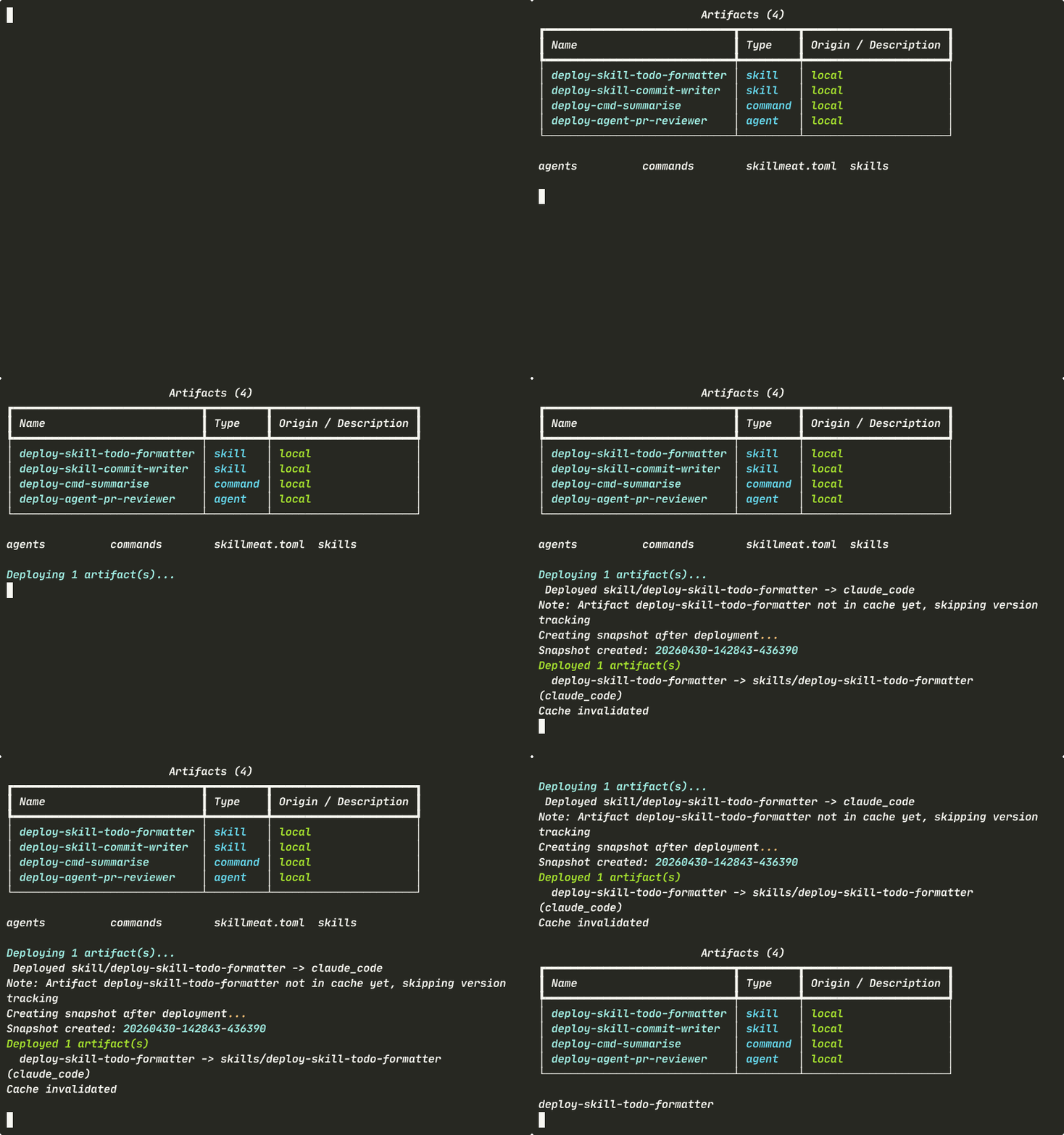
What You'll See
Collection Inventory
Start by reviewing what's available in your collection.
What's happening: - Your collection holds multiple deployable artifacts: skills, commands, agents, and more - All are ready to deploy into any project - The collection is your personal library — nothing is project-specific yet
Empty Project State
Check the target project before deployment.
What's happening:
- The .claude/ directory exists with empty subdirectories
- skillmeat.toml is the project manifest — it will be updated by deploy
- This is a clean slate — no artifacts deployed yet
- A good starting point to see the change after deployment
Deploying an Artifact
Deploy a single artifact from your collection to the project with one command.
skillmeat deploy <artifact-name> \
  --collection my-collection \
  --project ./my-project \
  --type skill \
  --overwrite
What's happening:
- --collection selects the source artifact
- --project selects where to deploy
- --type skill resolves ambiguity when the same name exists in multiple types
- --overwrite skips the interactive confirmation — essential for scripts
- No prompts or confirmation dialogs — immediate deployment
Collection Unchanged After Deploy
Your collection remains untouched — deploy is non-destructive.
What's happening:
- The same four artifacts appear — nothing was removed or modified
- Deploy reads from the collection; it doesn't consume
- The same artifact can be deployed to many projects from one collection
- Re-running deploy with --overwrite is safe and idempotent
Verifying Deployment
Check that the artifact landed in the project's .claude/ directory.
What's happening:
- Your deployed artifact appears in the subdirectory matching its type
- Claude Code finds it automatically in .claude/ — no extra configuration
- This is the same path you'd create manually; SkillMeat just manages it
- Ready to use immediately
Deploy vs. Scaffold
Both commands populate a project, but they work differently:
| Command | What It Does | When to Use |
|---|---|---|
| scaffold | Analyzes PRD/README, auto-detects stack, populates project | Starting a greenfield project |
| deploy | Copy specific artifact from collection to project | Adding individual artifacts to existing project |
Use scaffold to bootstrap; use deploy to add more.
Key Takeaways
- One-command deployment: Point to source and destination, deploy is instant
- Non-destructive: Collection is unchanged after deployment
- Reusable: One collection can deploy to many projects
- Idempotent: Safe to re-run with
--overwrite - Type resolution:
--typeflag prevents ambiguity
Try It Yourself
# List what you have in your collection
skillmeat list

# Initialize a new project
mkdir my-project
cd my-project
skillmeat init --project . --type project

# Deploy a skill from your collection
skillmeat deploy <skill-name> --collection my-collection --project . --type skill --overwrite

# Verify it's there
ls -la ./.claude/skills/

# Deploy more artifacts as needed
skillmeat deploy <command-name> --collection my-collection --project . --type command --overwrite
Common Flags
| Flag | Purpose |
|---|---|
--collection <name> |
Source collection (default: active) |
--project <path> |
Target project directory |
--type <type> |
Artifact type: skill, command, agent, etc. |
--overwrite |
Overwrite without confirmation (safe for scripts) |
--force |
Force deployment (use with caution) |
Next Steps
- Learn how to scaffold entire projects
- Explore syncing across projects
- See the deployment guide