Three-Way Sync Workflow (Web)
See how the unified Sync Status tab handles all three drift comparisons — Collection vs Project, Source vs Collection, and Source vs Project — without switching tools. One artifact, three scopes, one merge dialog.
About This Demo
Duration: ~3 minutes Audience: Engineers managing artifact drift across sources, collections, and projects What you'll see: Diverged artifact in browser, artifact modal, ComparisonSelector with three scopes, diff hunks with always-labeled sides, merge dialog and preview, sync resolution
What You'll See
Diverged Artifact in the Browser
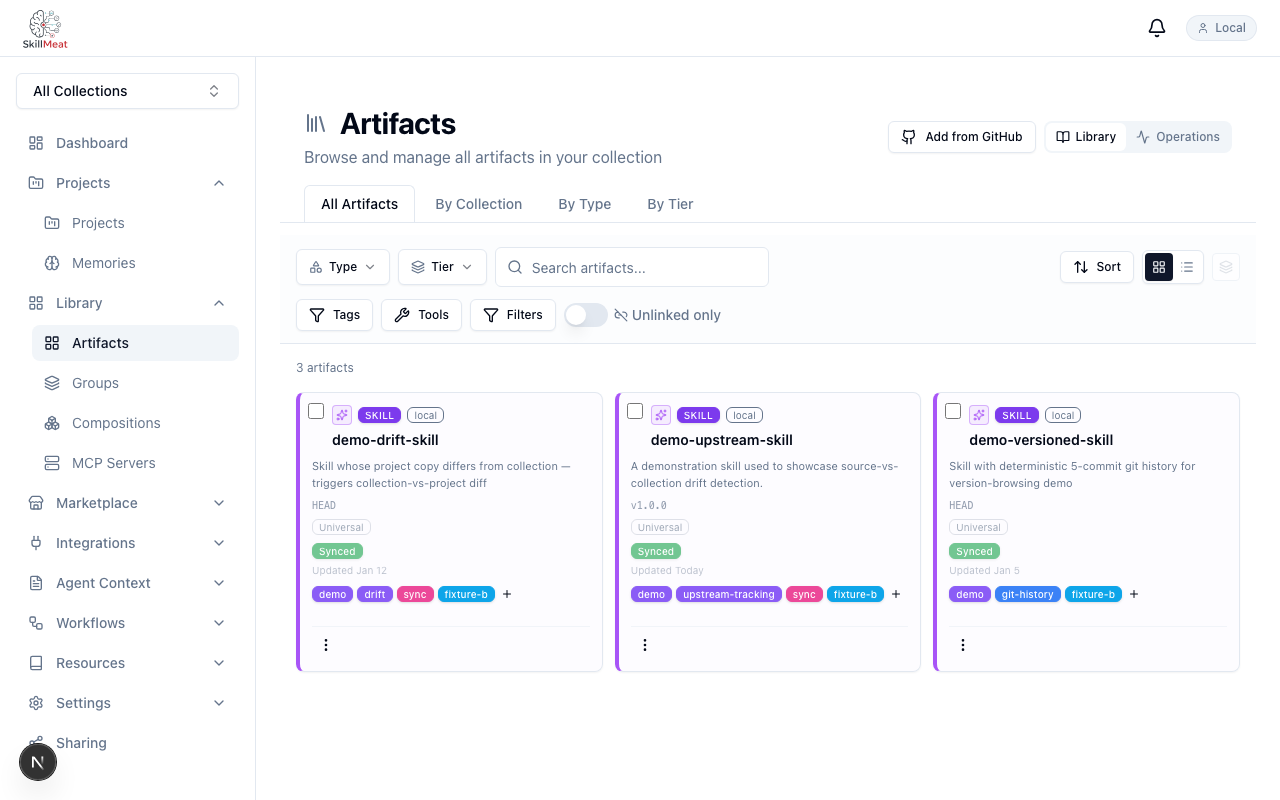
A divergence indicator surfaces drift directly in the artifacts list.
What's happening:
- The artifact row carries a divergence indicator — drift is visible without opening the artifact
- This artifact is diverged in two ways: upstream from the source AND from the project's local copy
- One artifact, two kinds of drift, one row
Open the Artifact Modal
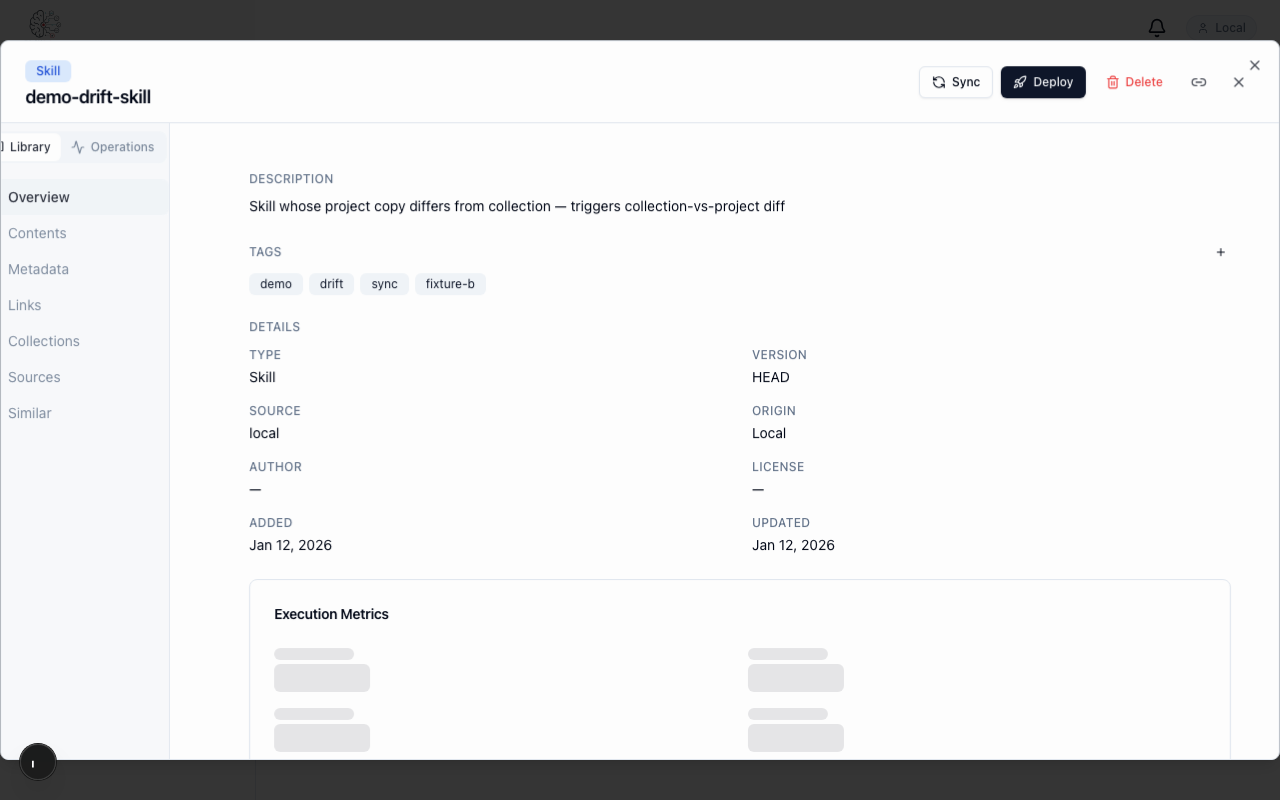
Click the row — the consolidated detail modal opens.
What's happening:
- The modal exposes the full artifact surface in tabs: overview, version history, deployments, sync status
- Sync Status is where drift gets inspected and resolved
Sync Status Tab Active
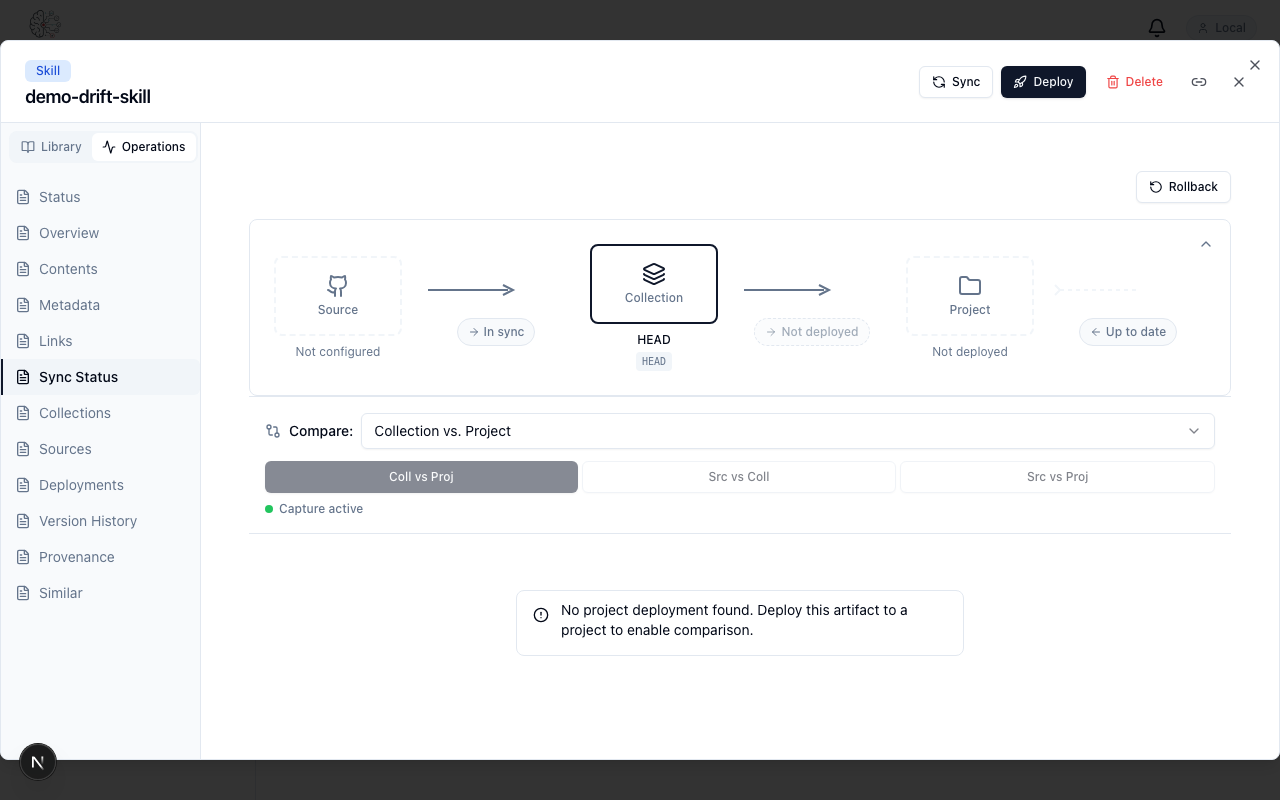
Switch to Sync Status — the ComparisonSelector appears immediately.
What's happening:
- Three comparison scopes are presented as a single selector: Collection vs Project, Source vs Collection, Source vs Project
- One tab unifies all three sync scopes — no separate views, no separate tools
Scope: Collection vs Project
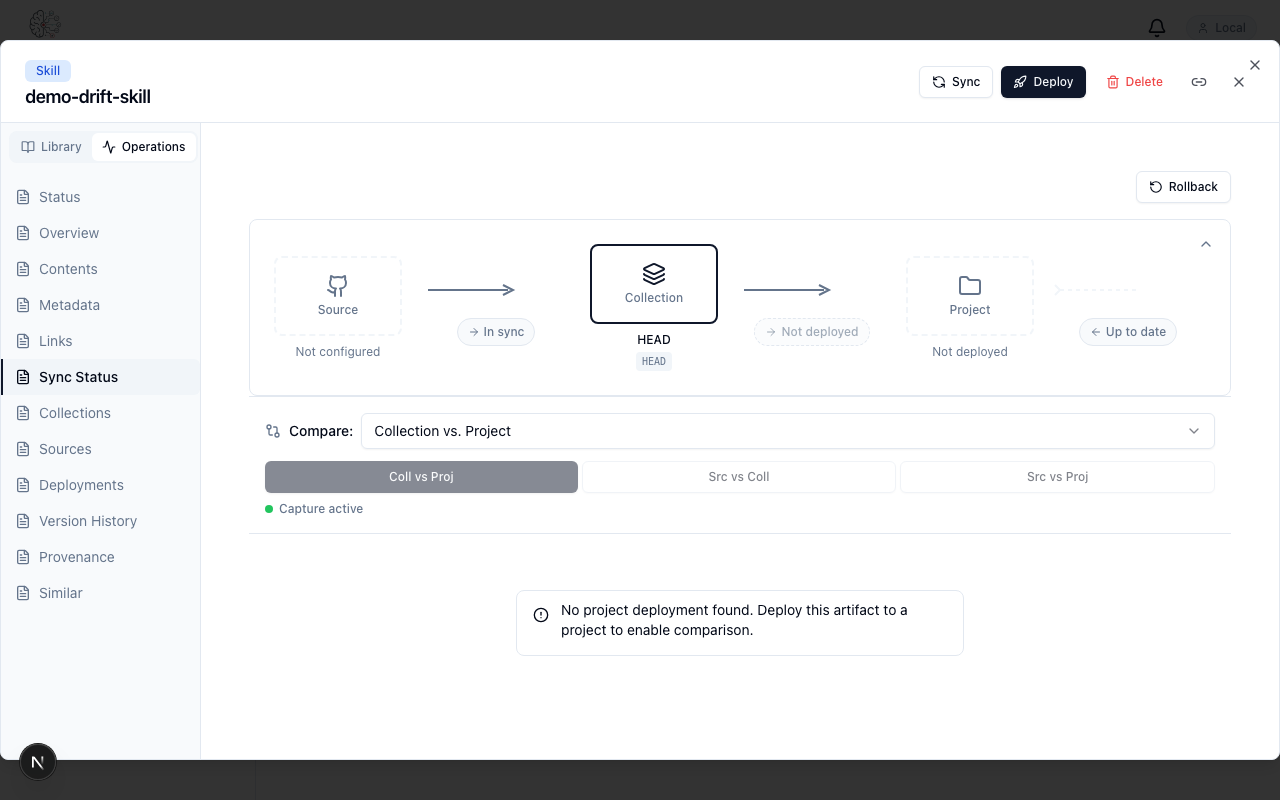
The default scope shows local project mutations against the collection's copy.
What's happening:
- Left side is labeled Collection, right side is labeled Project — labels are always explicit
- The DiffViewer renders the unified diff with added, removed, and context lines
- This shows what the project has changed since deployment
Scope: Source vs Collection
Switch scope — the DiffViewer reloads against the upstream source.
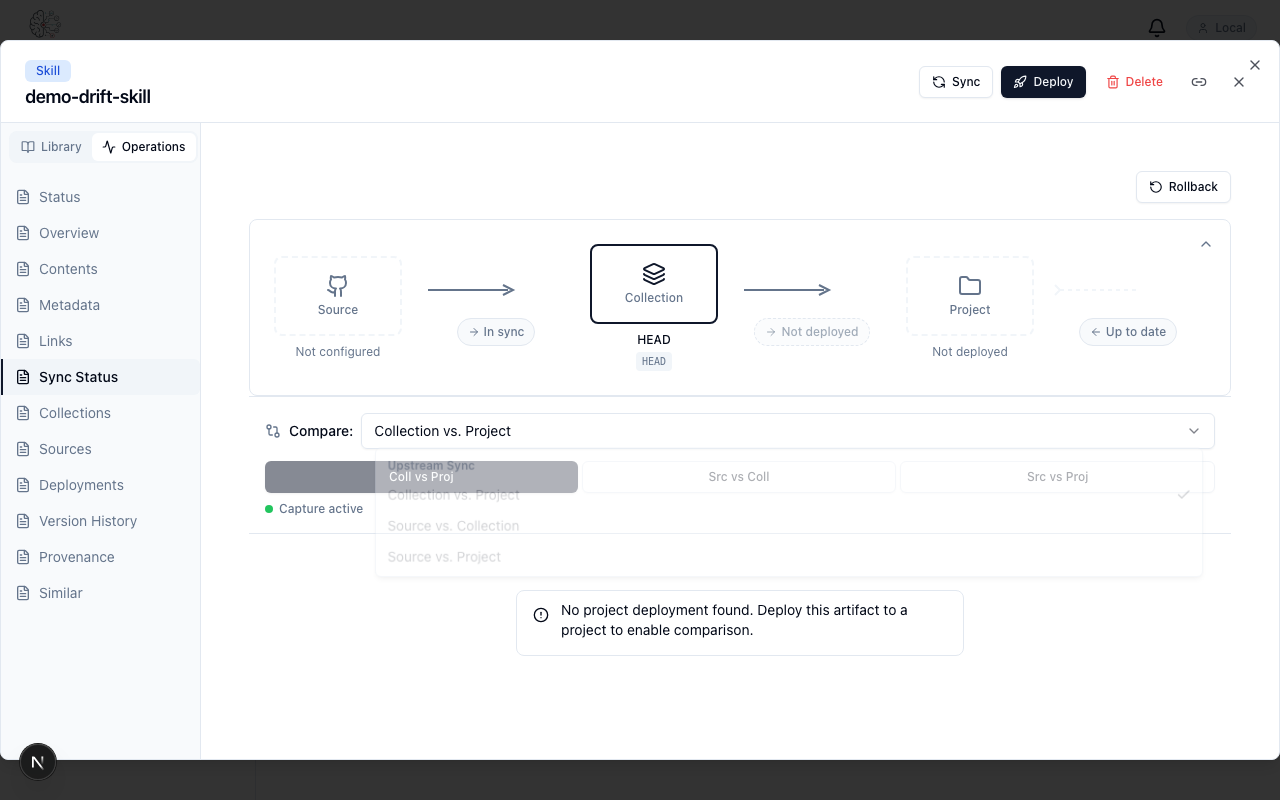
What's happening:
- Left is now Source (e.g. the GitHub repo), right is Collection
- This shows what changed upstream that the collection hasn't pulled yet
- Same UI, same artifact — only the comparison axis changed
Scope: Source vs Project
The third scope compares directly across the full chain.
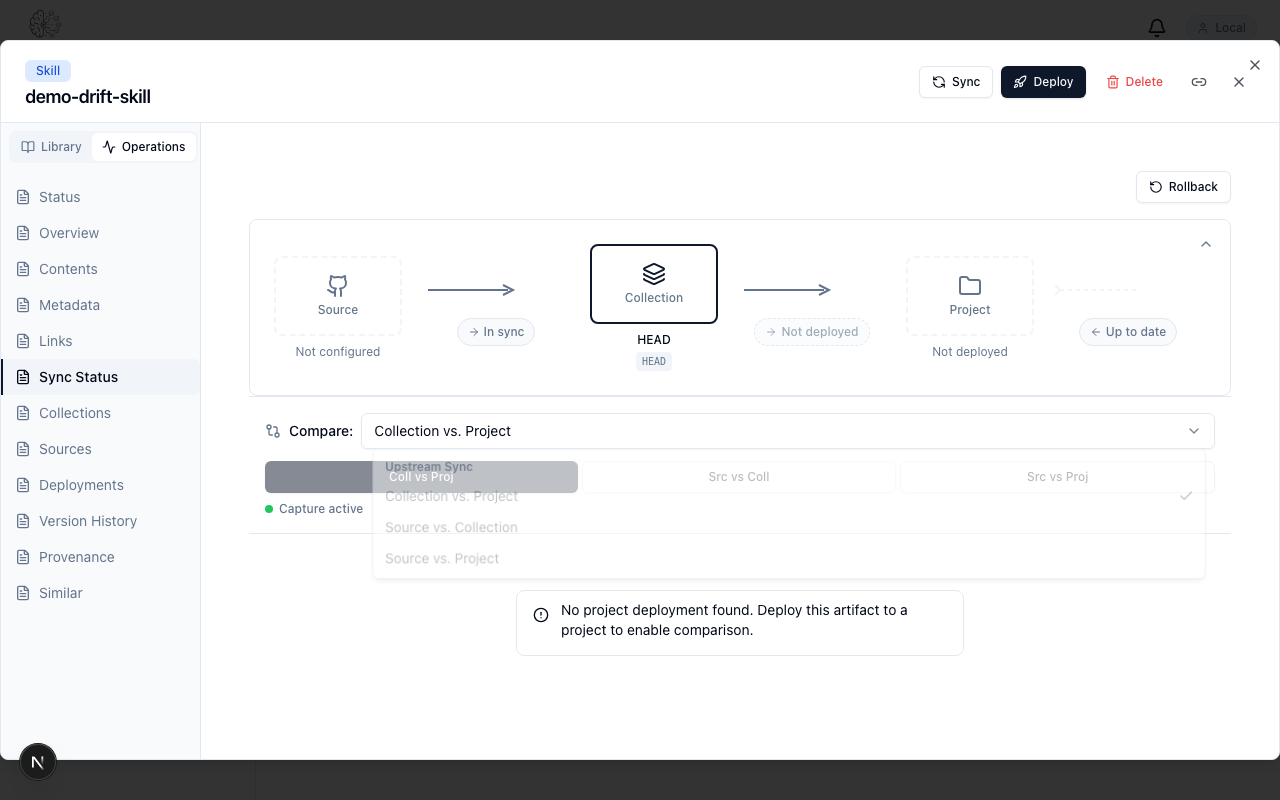
What's happening:
- Left is Source, right is Project — the broadest comparison
- Useful when you want to understand the total drift, not just one hop
- Combines upstream changes with local project mutations in a single diff
Diff Hunk Detail
Each hunk is rendered with line-level granularity.
What's happening:
- Hunks are parsed lazily — large diffs scroll smoothly because not every hunk is rendered upfront
- Added lines, removed lines, and context lines are visually distinct
- Stale time is tuned for interactive freshness (30s) — diffs don't sit on stale data
Open Merge Dialog
Initiating a merge opens the dialog with both sides.
What's happening:
- The merge dialog presents the two versions and the resolution surface
- Pick "ours", "theirs", or compose a merged version per hunk
- This is the resolution step — diffs alone don't change anything; the merge does
Merge Preview
Before committing, the dialog shows a preview of the resolved content.
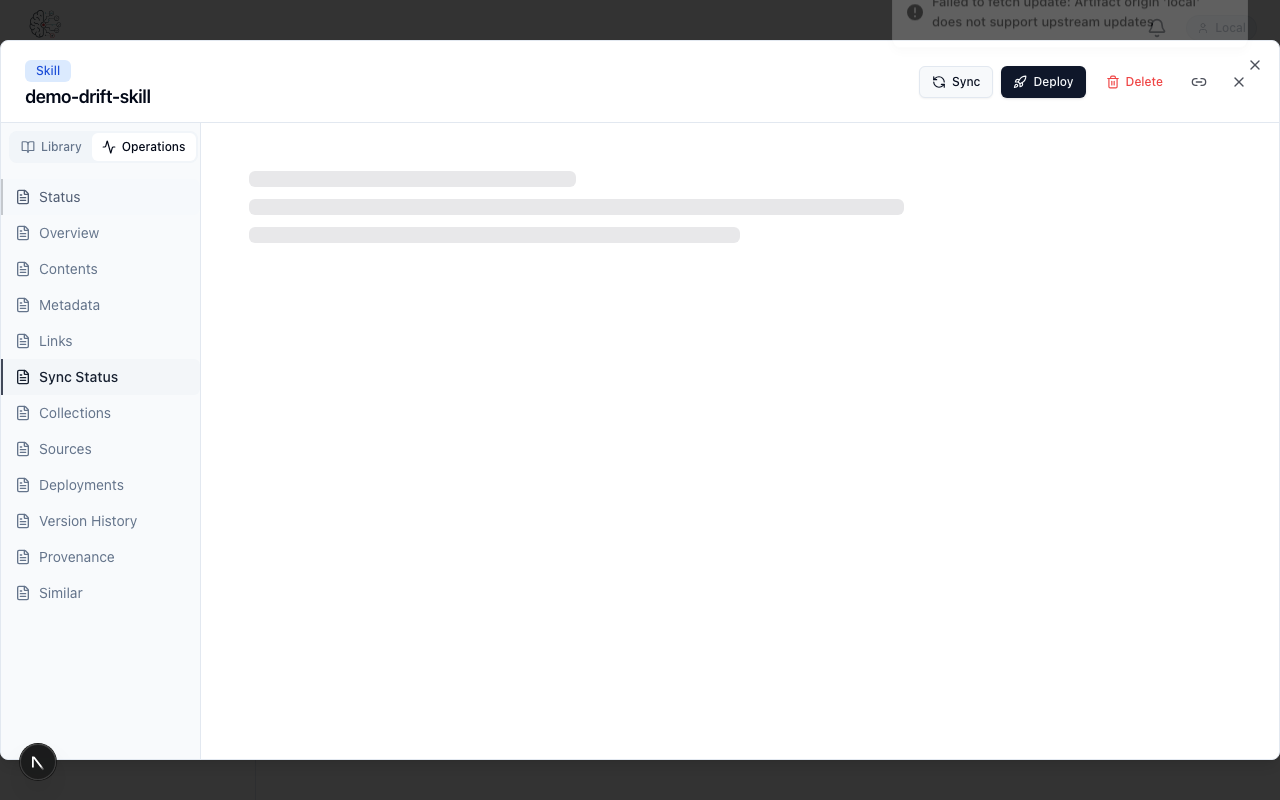
What's happening:
- The preview shows what the artifact will look like after merge
- No write happens until you confirm — preview is read-only
- This is the last checkpoint before drift gets resolved
Resolved State
After merge, the artifact returns to a synced state in the browser.
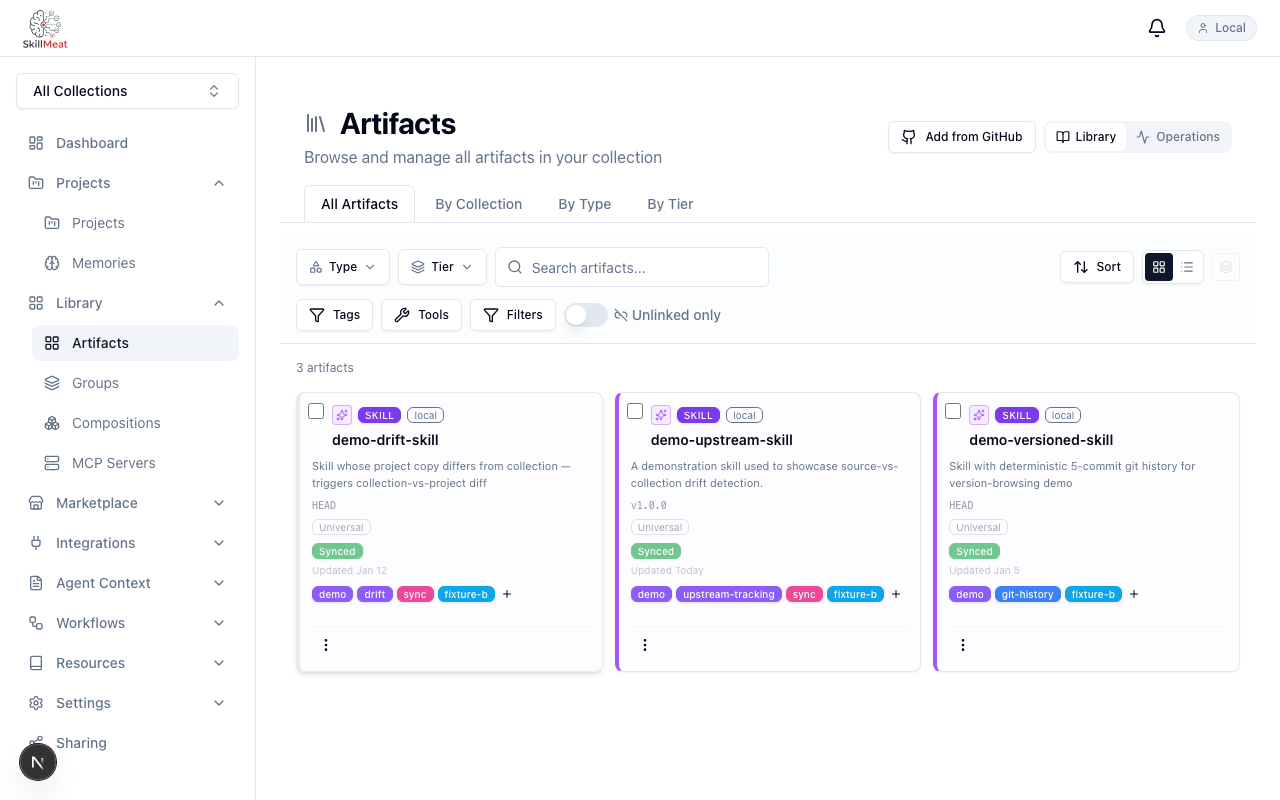
What's happening:
- The divergence indicator is gone — the artifact is now synced across all three scopes
- The browser reflects the new state without a full page reload
- Cache invalidation runs automatically: queries for this artifact's diffs are refreshed
The Three Scopes Cheat Sheet
| Scope | Left side | Right side | Use when |
|---|---|---|---|
| Collection vs Project | Collection | Project | Inspecting local project mutations |
| Source vs Collection | Source (repo) | Collection | Checking what's new upstream |
| Source vs Project | Source (repo) | Project | Understanding total drift end-to-end |
The label pair is always explicit — you never have to guess which side is which.
Key Takeaways
- One tab, three scopes: All comparisons in the same UI, no tool-switching
- Always-labeled sides: Left and right labels are never ambiguous
- Lazy hunk rendering: Large diffs perform well — only visible hunks are parsed
- Interactive stale times: Diff queries refresh on a 30s window — no stale state
- Preview before merge: The merge dialog shows the resolved content before any write
- Auto cache invalidation: After merge, related queries are invalidated automatically
Next Steps
- Try the CLI sync command for terminal-driven drift detection and resolution
- Pair with import and scaffold to complete the artifact lifecycle
- See the sync diff guide for advanced merge patterns