Sync Artifacts (CLI)
Learn how to detect drift between your collection and projects, inspect changes, preview updates, and resolve conflicts — all from the command line.
About This Demo
Duration: ~45 seconds
Audience: Developers managing artifact versions
What you'll see: Detecting drift, inspecting diffs, checking upstream availability, previewing changes, and updating artifacts
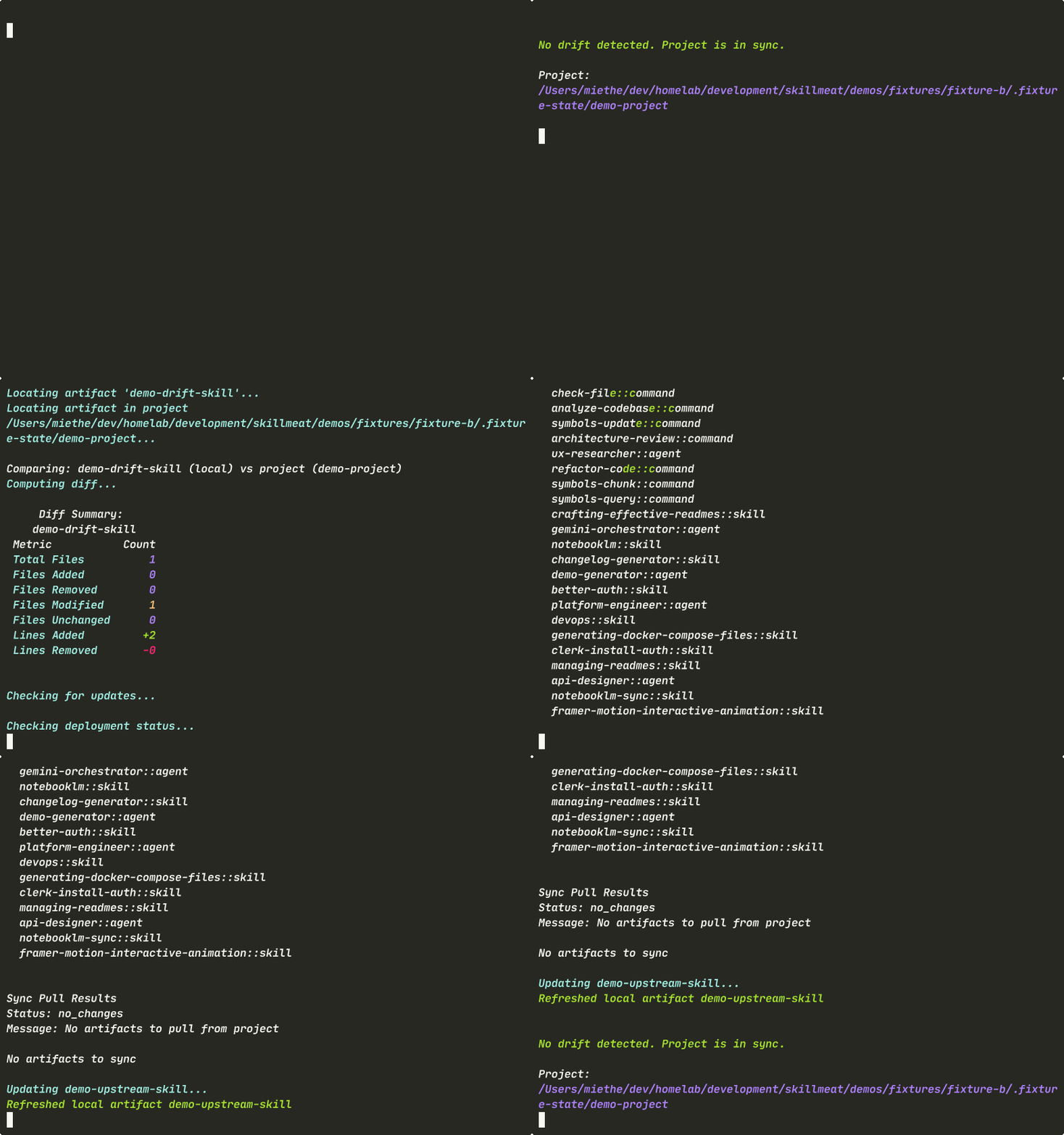
What You'll See
Detecting Drift
The sync-check command identifies which artifacts have drifted and why.
What's happening: - A table shows artifacts with drift - Two types of drift appear: locally modified files and upstream updates - No login, no dashboard — just a clear terminal output - Quick scan tells you exactly what needs attention
Inspecting Changes
Before touching anything, inspect the diff summary to see what changed.
What's happening:
- --summary-only shows a compact view: files changed, lines added/removed
- Drop the flag for the full unified diff if you need details
- See exactly what was modified before deciding what to do
Checking Upstream Availability
See which artifacts in your collection are behind upstream.
What's happening: - The command scans all artifacts for upstream updates - Shows your current version alongside what upstream shipped - Helps you understand what's stale in your collection - Independent from project drift
Previewing Changes
Before applying any changes, preview what would be synced with a dry-run.
What's happening: - Shows the full change set without applying any writes - Lists which artifacts would move and in which direction - Zero risk — this is a dry-run for confidence building - Essential before committing in CI pipelines
Updating Artifacts
Target specific artifacts and update them with a chosen strategy.
What's happening:
- --strategy upstream takes the upstream version without prompting
- Targeting by name means only this artifact updates — no accidental mass-changes
- The collection is now at the upstream version
- Drift is cleared on the next sync-check
Verifying the Fix
Run sync-check again to confirm drift was resolved.
What's happening: - The updated artifact no longer appears in the drift list - Other drift types remain visible until you resolve them - Verification is quick and honest — no assumptions
Drift Types
| Drift Type | What It Means | How to Fix |
|---|---|---|
| Local mutation | Project copy was modified locally | Decide to keep or revert |
| Upstream update | Newer version available upstream | Update to upstream version |
| Version mismatch | Collection version differs from locked | Run skillmeat update |
Key Takeaways
- One command to detect:
sync-checkfinds all drift types at once - Inspect before changing: Use
diffandsync-previewfor safety - Targeted updates: Update specific artifacts, not everything at once
- Always verify: Re-run
sync-checkto confirm changes took effect - Safe dry-runs:
sync-previewshows what would happen without writing
Try It Yourself
# Check for drift
skillmeat sync-check ./my-project

# See what the issue is
skillmeat diff artifact <name> --project ./my-project --summary-only

# Preview the sync
skillmeat sync-preview ./my-project

# Update upstream artifacts
skillmeat update <name> --collection my-collection --strategy upstream

# Verify the fix
skillmeat sync-check ./my-project
Common Flags
| Flag | Purpose |
|---|---|
--collection <name> |
Target a specific collection (default: active) |
--summary-only |
Show file-level summary instead of full diff |
--strategy upstream |
Use upstream version for updates |
--dry-run |
Preview without applying changes |
Next Steps
- Learn how to scaffold a new project
- See how to deploy artifacts to projects
- Explore the sync guides